Mounting S3 bucket in docker containers on kubernetes
Follow into
Save into
Follow into
Another installment of me figuring out more of kubernetes.
Full code available at meain/s3-mounter
So, I was working on a project which will let people login to a web service and spin up a coding env with prepopulated data and creds. We were spinning up kube pods for each user.
All of our data is in s3 buckets, so it would have been really easy if could just mount s3 buckets in the docker container. My initial thought was that there would be some PV which I could use, but it can't be that simple right.
So after some hunting, I thought I would just mount the s3 bucket as a volume in the pod. I was not sure if this was the right way to go, but I thought I would go with this anyways.
I found this repo s3fs-fuse/s3fs-fuse which will let you mount s3. Tried it out in my local and it seemed to work pretty well. Could not get it to work in a docker container initially but figured out that I just had to give the container extra privileges.
Adding --privileged to the docker command takes care of that.
UPDATE (Mar 27 2023): mountpoint (still in alpha) is an official alternative to create a mount from s3 bucket. This can be used instead of
s3fsmentioned in the blog.
Now to actually get it running on k8s.
Step 1: Create Docker image #
This was relatively straight foreward, all I needed to do was to pull an alpine image and installing s3fs-fuse/s3fs-fuse on to it.
Just build the following container and push it to your container. I have published this image on my Dockerhub. You can use that if you want.
 1FROM alpine:3.3
 2
 3ENV MNT_POINT /var/s3fs
 4ARG S3FS_VERSION=v1.86
 5
 6RUN apk --update --no-cache add fuse alpine-sdk automake autoconf libxml2-dev fuse-dev curl-dev git bash; \
 7    git clone https://github.com/s3fs-fuse/s3fs-fuse.git; \
 8    cd s3fs-fuse; \
 9    git checkout tags/${S3FS_VERSION}; \
10    ./autogen.sh; \
11    ./configure --prefix=/usr; \
12    make; \
13    make install; \
14    make clean; \
15    rm -rf /var/cache/apk/*; \
16    apk del git automake autoconf;
17
18RUN mkdir -p "$MNT_POINT"
19
20COPY run.sh run.sh
21CMD ./run.sh
1echo "$AWS_KEY:$AWS_SECRET_KEY" > passwd && chmod 600 passwd
2s3fs "$S3_BUCKET" "$MNT_POINT" -o passwd_file=passwd  && tail -f /dev/null
Step 2: Create a Secret #
The Dockerfile does not really contain any specific items like bucket name or key. Here we use a Secret to inject values into the docker container. A sample Secret will look something like this.
Replace the empty values with your specific data. Afer that just k apply -f secret.yaml
secret.yaml
1apiVersion: v1
2kind: Secret
3metadata:
4  name: s3-credentials
5data:
6  S3_REGION: ""
7  S3_BUCKET: ""
8  AWS_KEY: ""
9  AWS_SECRET_KEY: ""
Step 3: Create DaemonSet #
Well we could technically just have this mounting in each container, but this is a better way to go. What we are doing is that we mount s3 to the container but the folder that we mount to, is mapped to host machine.
With this, we will easily be able to get the folder from the host machine in any other container just as if we are mounting a normal fs.
The visualisation from freegroup/kube-s3 makes it pretty clear.
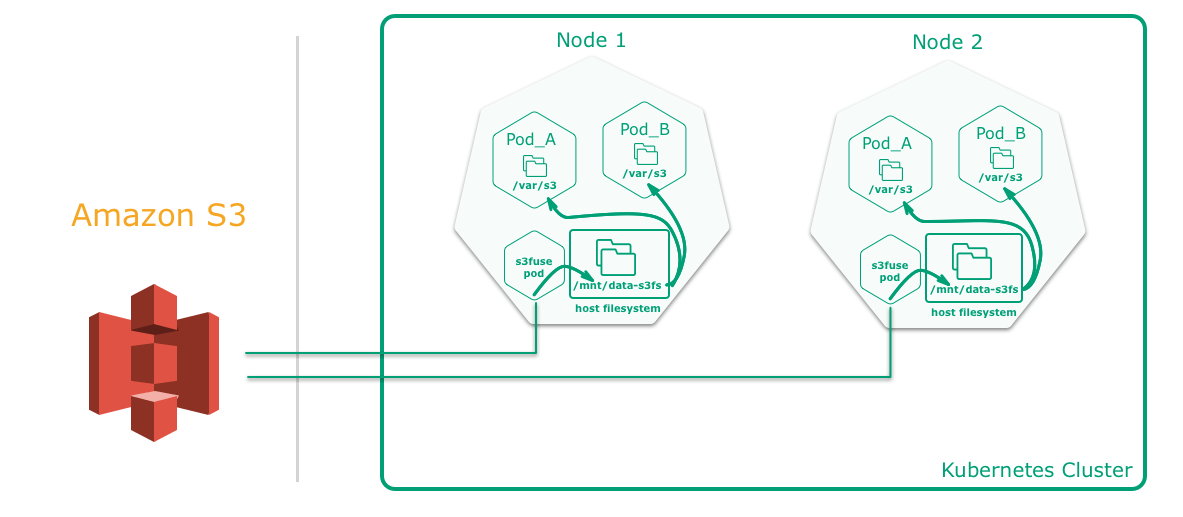
Since every pod expects the item to be available in the host fs, we need to make sure all host VMs do have the folder. A DaemonSet will let us do that. A DaemonSet pretty much ensures that one of this container will be run on every node which you specify. In our case, we ask it to run on all nodes.
Once ready k apply -f daemonset.yaml.
If you check the file, you can see that we are mapping /var/s3fs to /mnt/s3data on host
daemonset.yaml
 1apiVersion: extensions/v1beta1
 2kind: DaemonSet
 3metadata:
 4  labels:
 5    app: s3-provider
 6  name: s3-provider
 7spec:
 8  template:
 9    metadata:
10      labels:
11        app: s3-provider
12    spec:
13      containers:
14        - name: s3fuse
15          image: meain/s3-mounter
16          securityContext:
17            privileged: true
18          envFrom:
19            - secretRef:
20                name: s3-credentials
21          volumeMounts:
22            - name: devfuse
23              mountPath: /dev/fuse
24            - name: mntdatas3fs
25              mountPath: /var/s3fs:shared
26      volumes:
27        - name: devfuse
28          hostPath:
29            path: /dev/fuse
30        - name: mntdatas3fs
31          hostPath:
32            path: /mnt/s3data
If you are using GKE and using Container-Optimized OS,
/mntwill not be writeable, use/home/s3datainstead
With that applied you will have :
$ k get all
NAME                    READY   STATUS    RESTARTS   AGE
pod/s3-provider-psp9v   1/1     Running   0          39m
pod/s3-provider-zvfrs   1/1     Running   0          39m

NAME                         DESIRED   CURRENT   READY   UP-TO-DATE   AVAILABLE   NODE SELECTOR   AGE
daemonset.apps/s3-provider   2         2         2       2            2           <none>          39m
By now, you should have the host system with s3 mounted on /mnt/s3data. You can check that by running the command k exec -it s3-provider-psp9v -- ls /var/s3fs
Step 4: Running your actual container #
With all that setup, now you are ready to go in and actually do what you started out to do. I will show a really simple pod spec.
pod.yaml
 1apiVersion: v1
 2kind: Pod
 3metadata:
 4  name: test-pd
 5spec:
 6  containers:
 7    - image: nginx
 8      name: s3-test-container
 9      securityContext:
10        privileged: true
11      volumeMounts:
12        - name: mntdatas3fs
13          mountPath: /var/s3fs:shared
14  volumes:
15    - name: mntdatas3fs
16      hostPath:
17        path: /mnt/s3data
Run this and if you check in /var/s3fs, you can see the same files you have in your s3 bucket.
Change mountPath to change where it gets mounted to. Change hostPath.path to a subdir if you only want to expose on specific folder